
Voice shortcuts are AI workflow automation for your whole PC.
Hold one key, say one sentence, and Owlfy opens apps, rewrites text in place, and searches the web — instantly, without touching your keyboard.
There is a version of your computer that responds to exactly what you say, the moment you say it — no keyboard shortcuts to memorize, no menus to navigate, no windows to drag aside to get to what you need. Owlfy's voice shortcuts are that version. They're the AI workflow automation layer that turns natural speech into immediate, precise desktop actions — covering everything from launching an app to rewriting an email draft to searching the web. This guide walks through how voice shortcuts work, with concrete examples drawn from how real users fold them into a daily PC workflow.
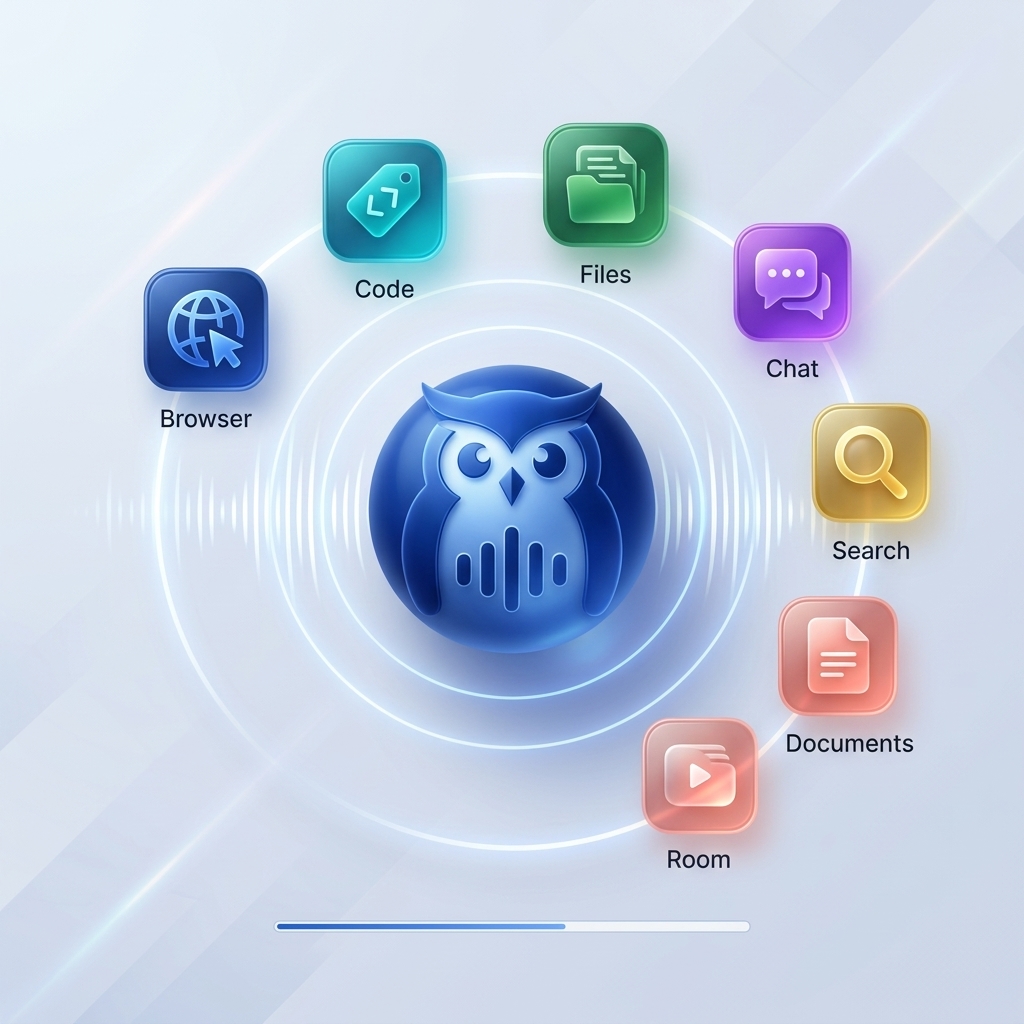
The MechanismHow to Trigger a Voice Shortcut
Hold your voice key — Right Alt on Windows, Fn on macOS, or your mouse scroll wheel — speak your command in natural language, then release. That's the entire interaction. No activation phrase, no command syntax, no confirmation prompt for routine tasks.
"Speak, and it's done." — three words that describe the entire voice shortcuts experience.
Unlike voice dictation software, which only transcribes what you say into text, a voice shortcut actually executes the action behind it — opening, editing, searching, or processing, depending on what you ask for.
1 · Quick LaunchOpen Any App, Website or Folder by Voice
The most immediate use of a voice shortcut is navigation. Instead of clicking through a taskbar, dock, or Start menu, you speak the name of what you want — and it opens.
Applications
- "Open Chrome"Chrome launches instantly. Works for any installed application — Photoshop, VS Code, Excel, Slack, Zoom. Owlfy recognizes common names and any custom aliases you define.
- "Open Spotify"Any app, by name. Set a custom alias (e.g., "my notes app" for Obsidian) in Settings → App Management.
- "Open Chrome and go to github.com"One command, two actions — the browser launches with the URL already loaded.
Websites and Directories
- "Open Downloads"Your Downloads folder opens. "Open my project folder" opens any custom directory alias you've configured.
- "Google search React performance tips"Browser opens with search results pre-populated, on the engine you specify.
2 · Text ProcessingEdit, Summarize and Translate Without Leaving Your Window
Select any text in any application — an email draft, a document paragraph, a code block, a chat message — hold the voice key, say what you want done. The result appears in the same window. No copy-paste. No second tool. No context switch.
This is where a voice shortcut eliminates the most repetitive friction in a knowledge worker's day, and the gap that clipboard manager software never closes: a clipboard manager can move text between apps, but it can't rewrite, summarize, or translate it. Voice shortcuts do both — instantly, in place.
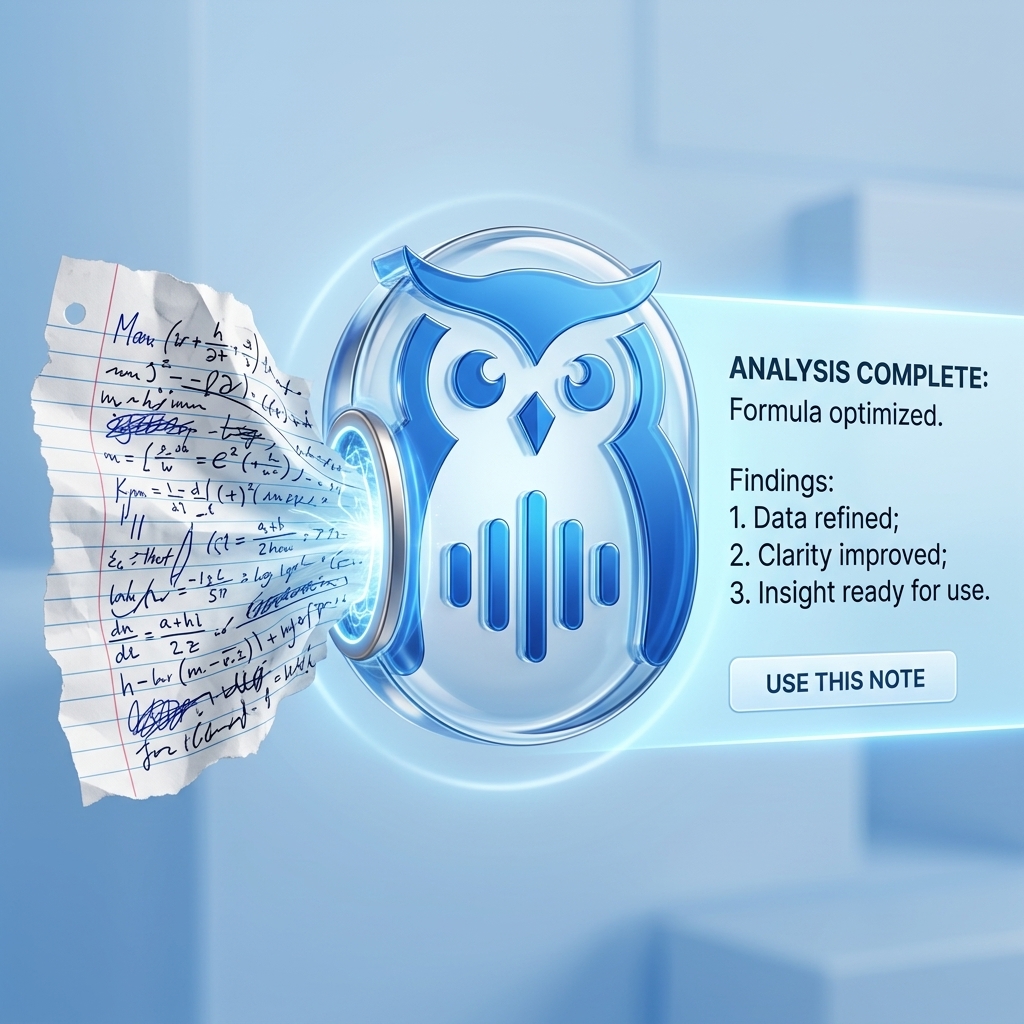
Rewrite and Polish
- "Rewrite this in a professional tone"Select an overly casual message and it becomes polished prose — useful before sending emails, Slack messages, or client communications.
- "Make this more concise"Select a rambling paragraph; receive a tighter, sharper version.
- "Improve this"Owlfy infers from context what "better" means for the selected text type.
Summarize and Extract
- "List the action items"Select meeting notes; receive a clean bulleted task list with owners and dates.
- "Give me 3 headline options"Select a topic description; receive three clickable headline variants.
Code, Data and Translation
- "Explain this code"Select any code block; receive a plain-language explanation in context, or say "convert this JavaScript to Python" for voice-driven code translation.
- "Turn this into a table"Select comma-separated or prose data; receive a formatted table.
- "Translate to Spanish"Any text, to any of 100+ supported languages, delivered in the active window.
Every traditional text workflow requires leaving what you're doing — find the tool, copy, paste, wait, copy back. A voice shortcut collapses that entire loop into a single spoken sentence, in the window you're already in.
3 · Beyond TextVoice Shortcuts Also Handle Your Files
Quick Launch and Text Processing cover most of a workday, but voice shortcuts extend to files too. Select one or more images or documents, describe what you want, and Owlfy processes them locally — no upload, no separate app.
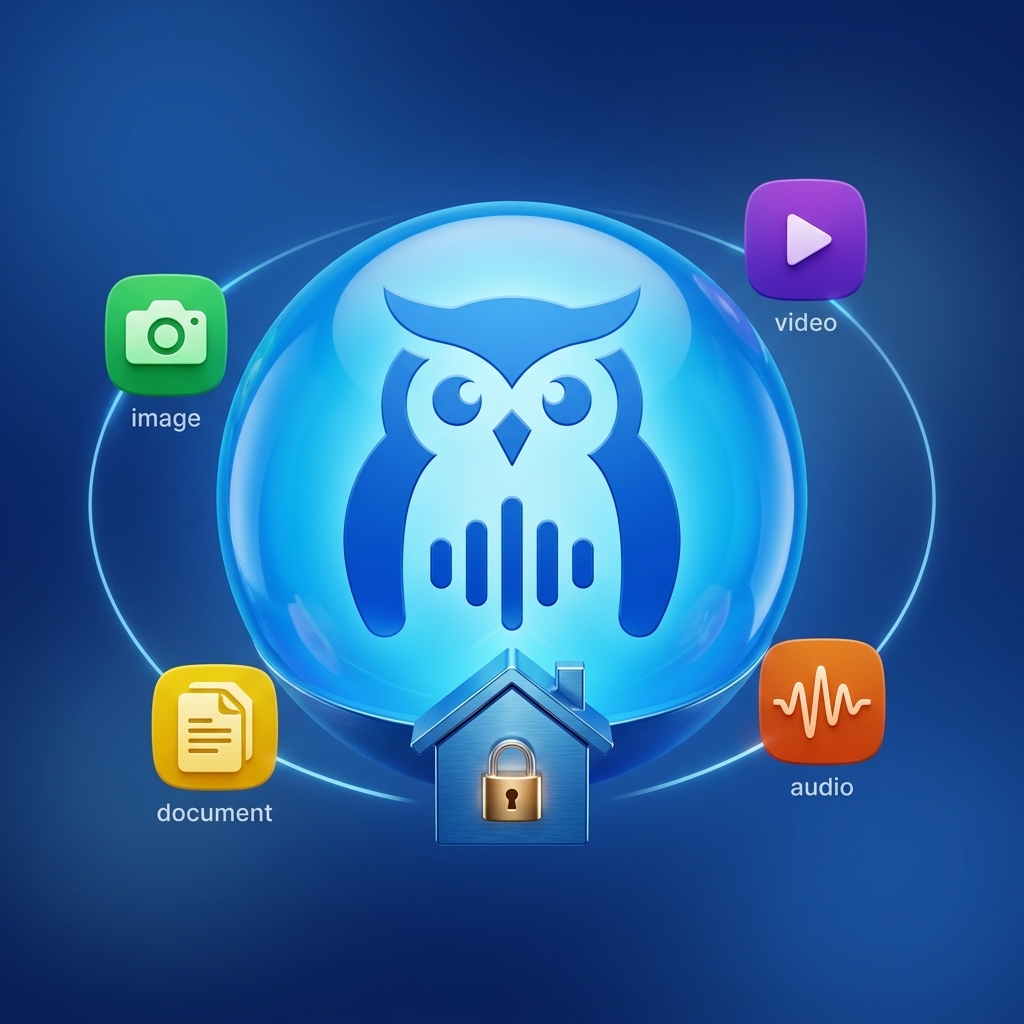
- "Compress this image"File size reduced, quality preserved — no dedicated compressor app required.
- "Convert these to PDF and merge them"Batch document conversion handled in one spoken instruction.
- "Remove the background"Transparent-background image generated instantly, processed entirely on-device.
4 · Instant SearchVoice-Driven Web Queries
A voice shortcut lets you search any engine by voice without first opening a browser. Describe what you want to find, optionally specify the engine, and results appear.
- "Search for the best mechanical keyboards under $100"Your default search engine opens with the query filled in.
- "Google search Python async best practices"Google specifically, regardless of your default browser.
- "Bing search AI news today"Bing specifically — useful when you want a different index.
In PracticeVoice Shortcuts for PC: What Changes When You Start
Here's a real 20-minute stretch of a workday once voice shortcuts are running:
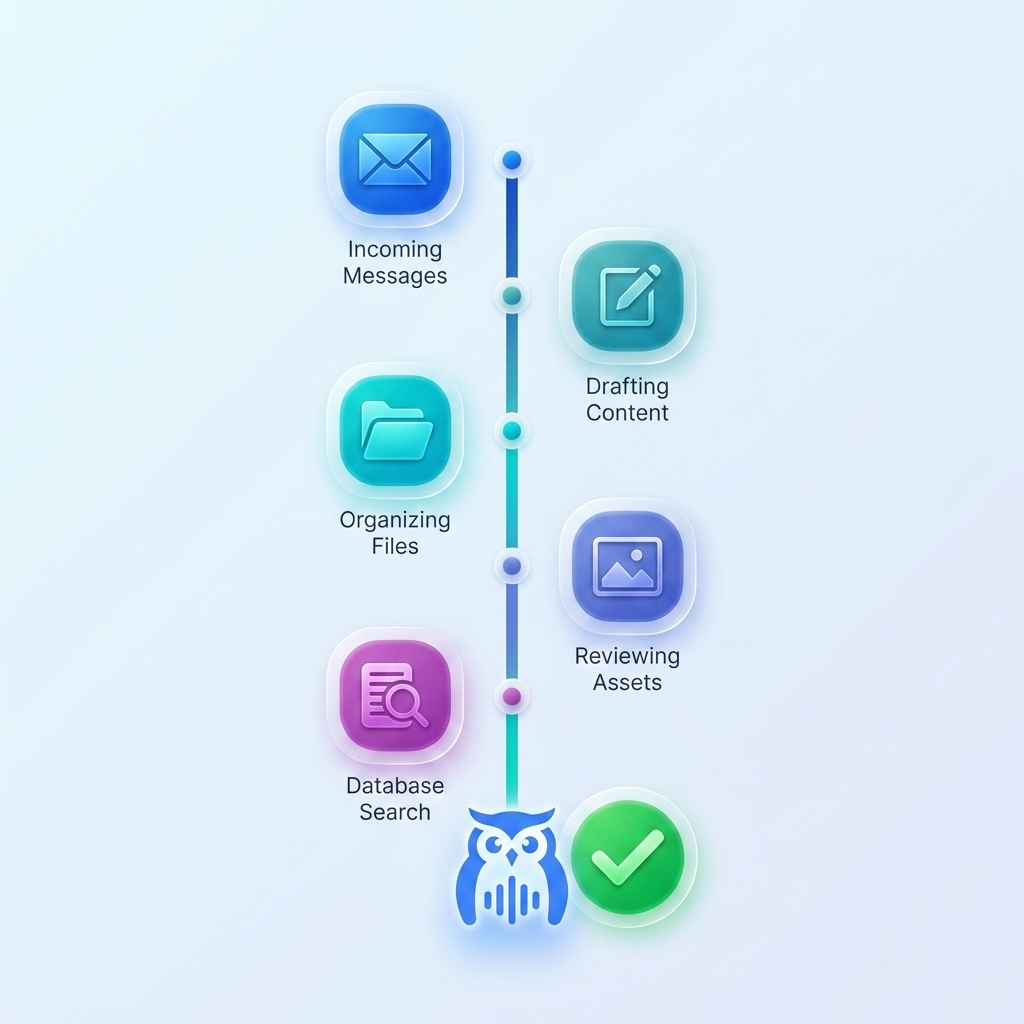
8:05 AM
"Open Outlook" — inbox appears.
8:08 AM
Select an overlong paragraph → "Make this two sentences."
8:15 AM
"Google search latest news on AI" — browser opens.
8:18 AM
Select meeting notes → "Extract all action items as a numbered list."
8:22 AM
Select a PDF → "Summarize the key points in three bullets."
Keyboard clicks
For all five tasks above: 5.
Voice shortcuts don't add a new tool to your workflow. They replace the repetitive manual steps that currently sit between you and every task — with a single sentence. Treat every example in this guide as a starting voice command list: Owlfy adds new shortcuts with every release.
Stop clicking. Start speaking.
Try this AI workflow automation free for 20 days — no setup, no syntax, no software stack to learn.