Say what you want, ask anything, every file, done with AI
Your AI secretary and researcher for every document, media and folder – answer questions, bulk convert files and orchestrate workflows.
Easier and faster to get your thoughts out by speaking
Use your voice to dictate and run 100+ operations on files and folders saved locally on Windows & Mac, while working on any app - say goodbye to jumping between apps.
Document Knowledge and Research Agent, with Voice
Your cross-document knowledge and research assistant, instruct with voice
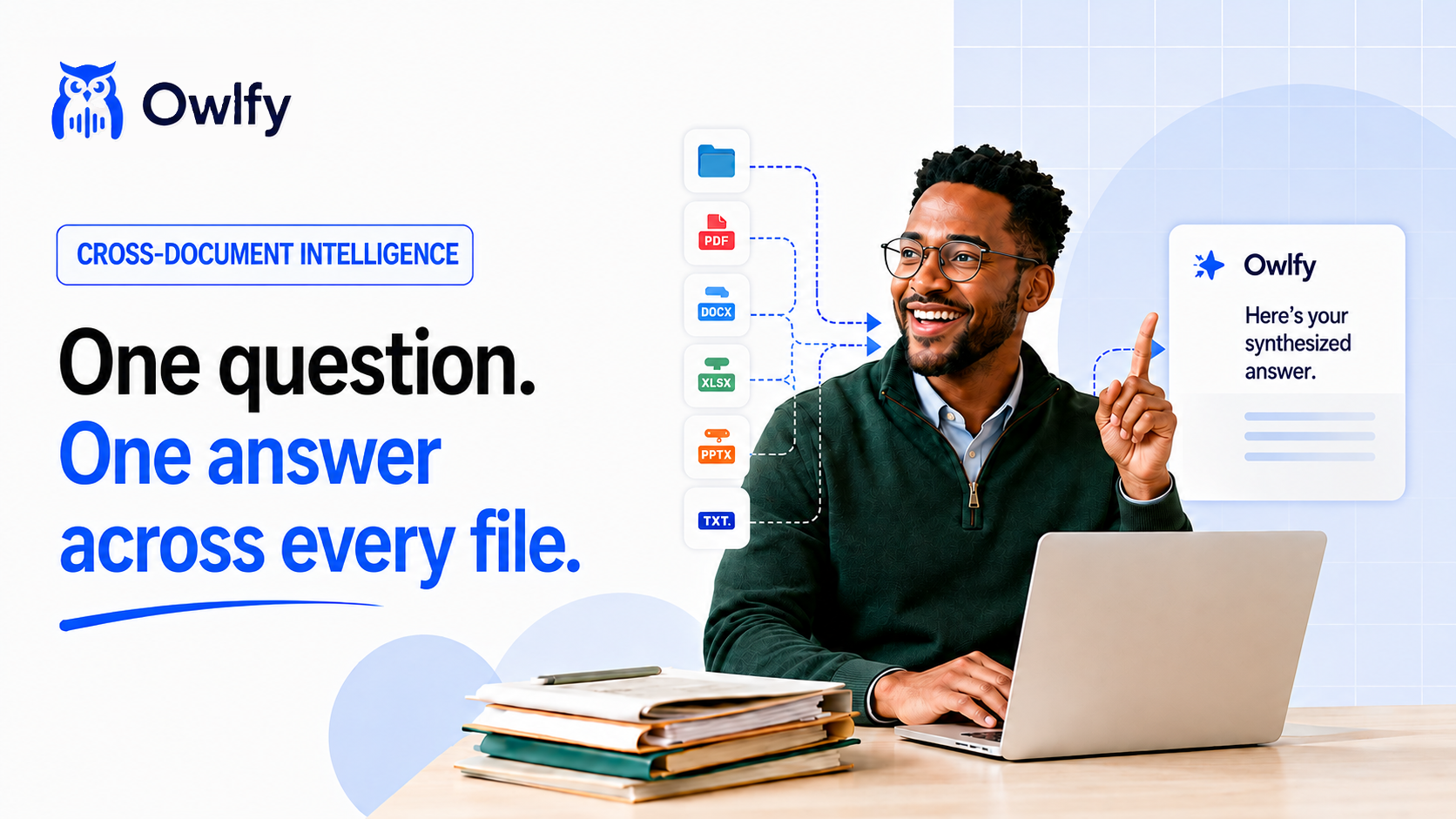
30% of workday lost to hunting info scattered across files. Not cause files are hard to find – it’s that they don’t talk to each other. Owlfy “talks” to your files and folders, so ask anything on hundreds of files, get one answer back – your files become a unified, query-able knowledge base.
Analyze this...
Analysis Result
Analyze, draw insight, summarize, translate files and folders in batch
Select files or folders on your local device, ask Owlfy for analysis, insights, summary or translation, and it delivers you content researched and synthesized from selected files/folders.
Find related data...
Total Revenue
$142,500
Found across 45 documents
Search across files and folders
Ask any question on any number of files and folders - "how much money did we make?", "how much does customer owe us?" - get your one answer without opening a single file.
Build timeline & find anomalies...
Q1
Q2
Anomaly
Q3
Q4
Identify patterns and outliers
Starting to see recurring pattern over time, but just couldn't pinpoint it? Select files and ask Owlfy to build timeline, figure out key events and flag any outlier that deserves attention.
Batch Document Agent, with Voice
Your AI admin and secretary, one instruction, every tool
Average company runs 106 apps, 30% spent on redundant SaaS – document operations is never one job, it’s multiple jobs. Owlfy replaces stack with one document agent that converts, merges, redacts docs in batches – one instruction scales from a file to thousands of files.
JPG
HEIC
JPG
HEIC
JPG
HEIC
JPG
HEIC
JPG
HEIC
JPG
HEIC
Convert HEIC photos to JPG
Task Complete
Converted 124 images to JPG in 3s.
Convert files across formats in bulk
Convert docs, images, videos and audio from one format to another – word/excel/ppt to pdf, jpg to mov, mov to mp4 and more.
Merge into one presentation
Merge Complete
Merged 5 files into 1 PDF document.
Merge documents and multimedia in bulk
Merge docs into one, merge images into slideshows or video, combine folders of PDFs into single document, in your own order.
Clean and make postable
Final Export Ready
Sequenced 5 edits. Final MP4 ready for export.
Edit media that usually requires many stages in one pass
Select video and say "clean this up and make it postable" — filler words cut, clips merged, subtitles added, aspect ratio set, all in one pass. Let Owlfy sequence editing stages automatically, instead of you doing stitching it manually. You may do the same with audio and videos with Owlfy.
Filed
Flagged
Process today's intake
Workflow Complete
40 filed, 2 flagged for validation.
Auto sequence document work into workflow
Set your own rules and say "process today's intake" — Owlfy converts, OCRs, and files every document, flagging anything that fails validation instead of letting it slide through, based on your rules.
Control and dictate text with voice, your text master
Other dictation apps help you type faster, but stop there. At Owlfy, dictation is one piece of engine that runs document operations - write with your voice with Owlfy, same voice that runs your documents.
export const analyzeQuantumState = (ψ, φ) => {
const entanglement = calculate(ψ, φ);
return normalize(tensorProduct(ψ, φ));
}
Explain this
Simple explanation
It combines two separate particle states into one combined system, making them mathematically linked.
Explain complex text
Highlight codes, math, jargons or text, say “analyze”, “explain”, “summarize”, “translate to whatever language”. Then watch Owlfy take action for you.
To:
investors@fund.com
Hi there, I am the founder of Owlfy. We're building the next-gen voice AI agent that transforms PC interaction. We just crossed $1M ARR and I'd love to connect. Best, Founder
Elevator pitch
Voice to "smart phrases"
Define your phrases first, then say "address", "short pitch", "self intro", and Owlfy will write out in full.
Speech
"We did great this quarter, but need to push harder next month."
Business Executive Style
Business Executive
"Q3 performance exceeded expectations. To sustain this momentum, we must accelerate our strategic initiatives in the upcoming month."
Write in any style
Select, or create own, character – business, coding master or partner whisperer – speak naturally and Owlfy will rewrite in character’s style.
English
"Could you tell me how to get to the nearest train station?"
Translate to Spanish
Spanish
"¿Podría decirme cómo llegar a la estación de tren más cercana?"
Translator, like a local friend
Instantly translates your speech into your chosen language, as if a local wrote it.
Available for Mac, Windows, Linux, Messenger, and WhatsApp
Start your free 20 days with us now
Works Everywhere, with Voice
Same window, every task, less switching windows
You might jump between apps 1,100+ times a day, costs 9.5 mins to regain flow each time, that's 5 hours per week! Owlfy closes gap by never asking you to switch, it lives invisibly within whatever you are doing - call Owlfy to convert, search or watermark files without leaving your window.
Remote Control
Take Owlfy everywhere – run file tasks from phone, your remote desktop
You don’t stop managing files just cause you are away from desk. That’s why Owlfy turns your phone into remote desktop – scan QR code, Owlfy will become your contact on Messenger/WhatsApp. Text Owlfy to analyze, convert and summarize files on desktop – get results in mobile chat.
Owlfy
Messenger
Summarize the Q3 report on my desktop.
Q3_Report.pdf
Summary: - Revenue up 15% to $4.2M - Strong retention at 94% - Marketing spend increased.
Owlfy Assistant
WhatsApp
Generate a slideshow from the Hawaii trip photos.
0:15
hawaii_slideshow.mp4 Done! Combined 42 photos into a video.
Use Case
Market research analyst
Point Owlfy at a folder of survey PDFs and ask what's common across all of them — patterns, outliers, figures, synthesized into one answer, not a hundred files to skim. An afternoon of copy-pasting becomes one spoken question.
Market research analyst
Point Owlfy at a folder of survey PDFs and ask what's common across all of them — patterns, outliers, figures, synthesized into one answer, not a hundred files to skim. An afternoon of copy-pasting becomes one spoken question.
Paralegal, legal assistant
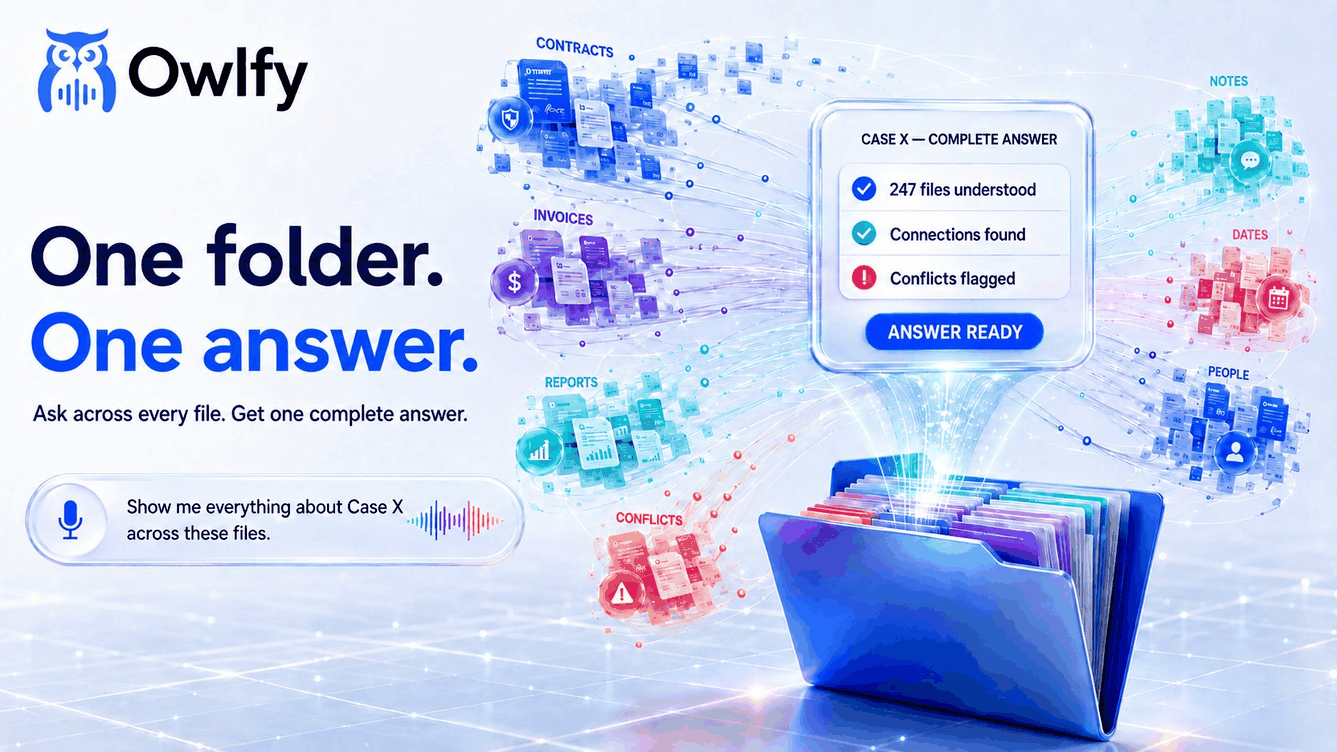
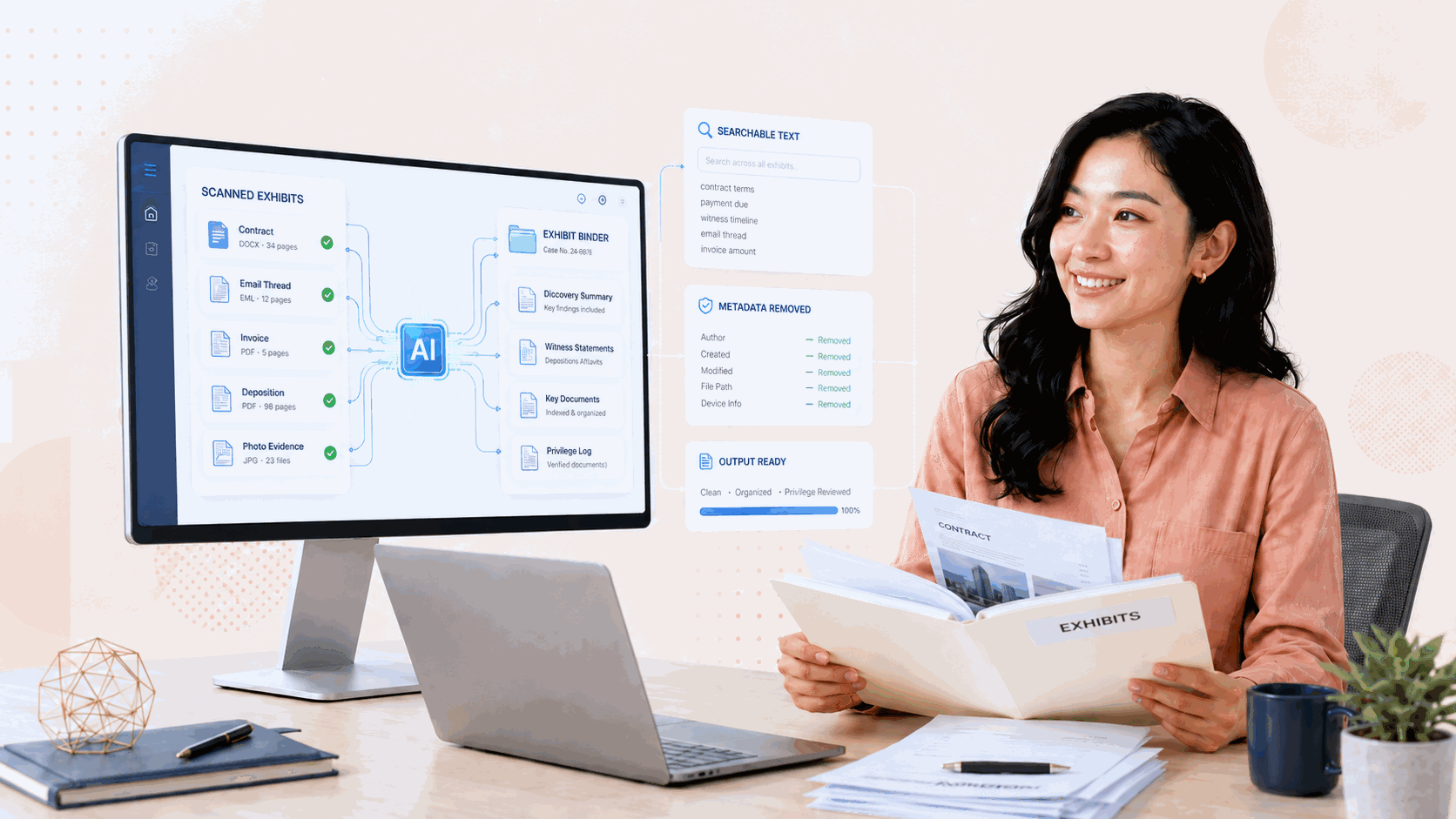
Hand Owlfy a folder of scanned exhibits and say what discovery needs — uniform formats, searchable text, metadata stripped — done locally before a privileged file leaves the office. Afterward, ask "show me everything about Case X," and the case file answers as one.
Admin, secretary
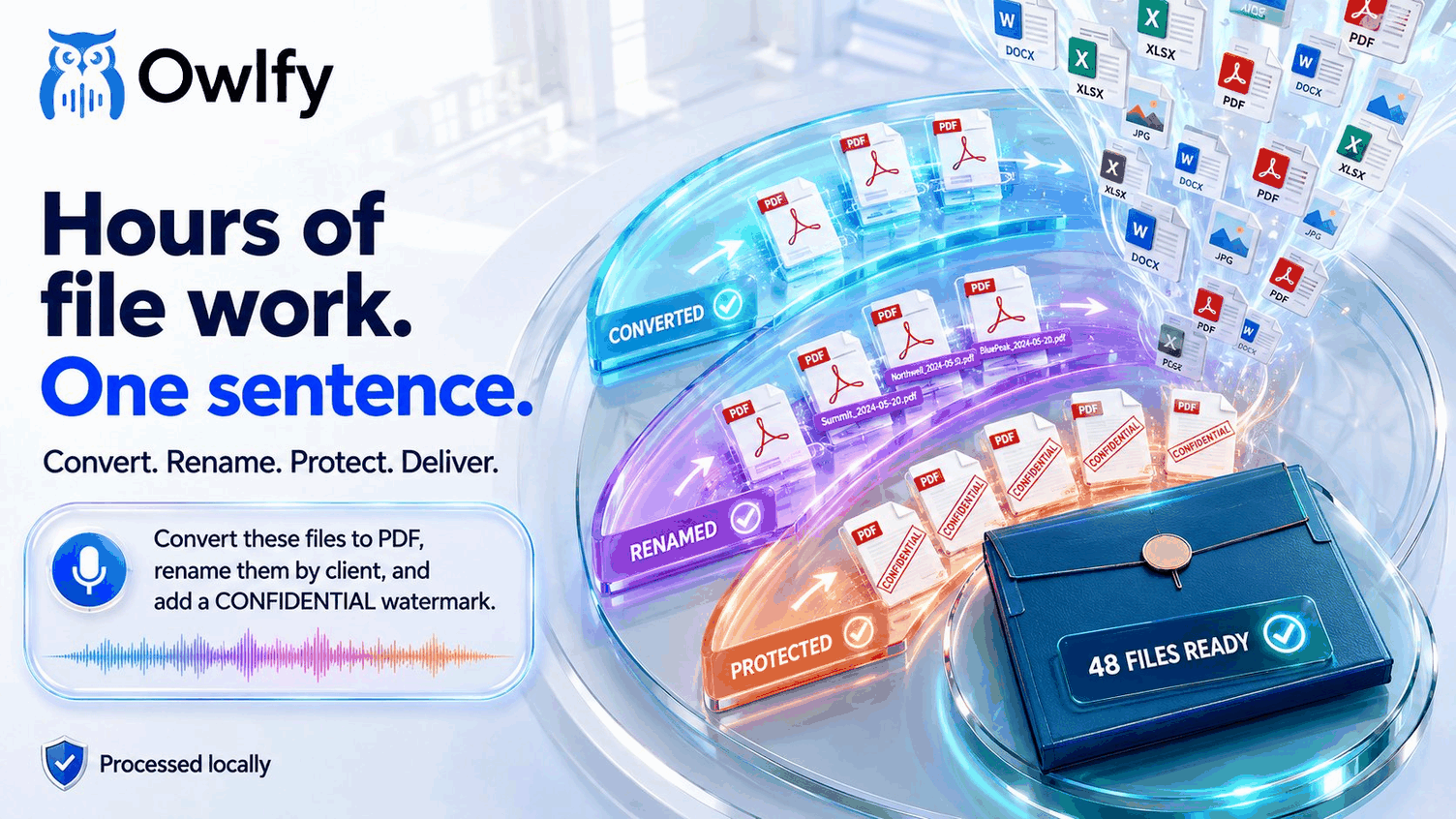
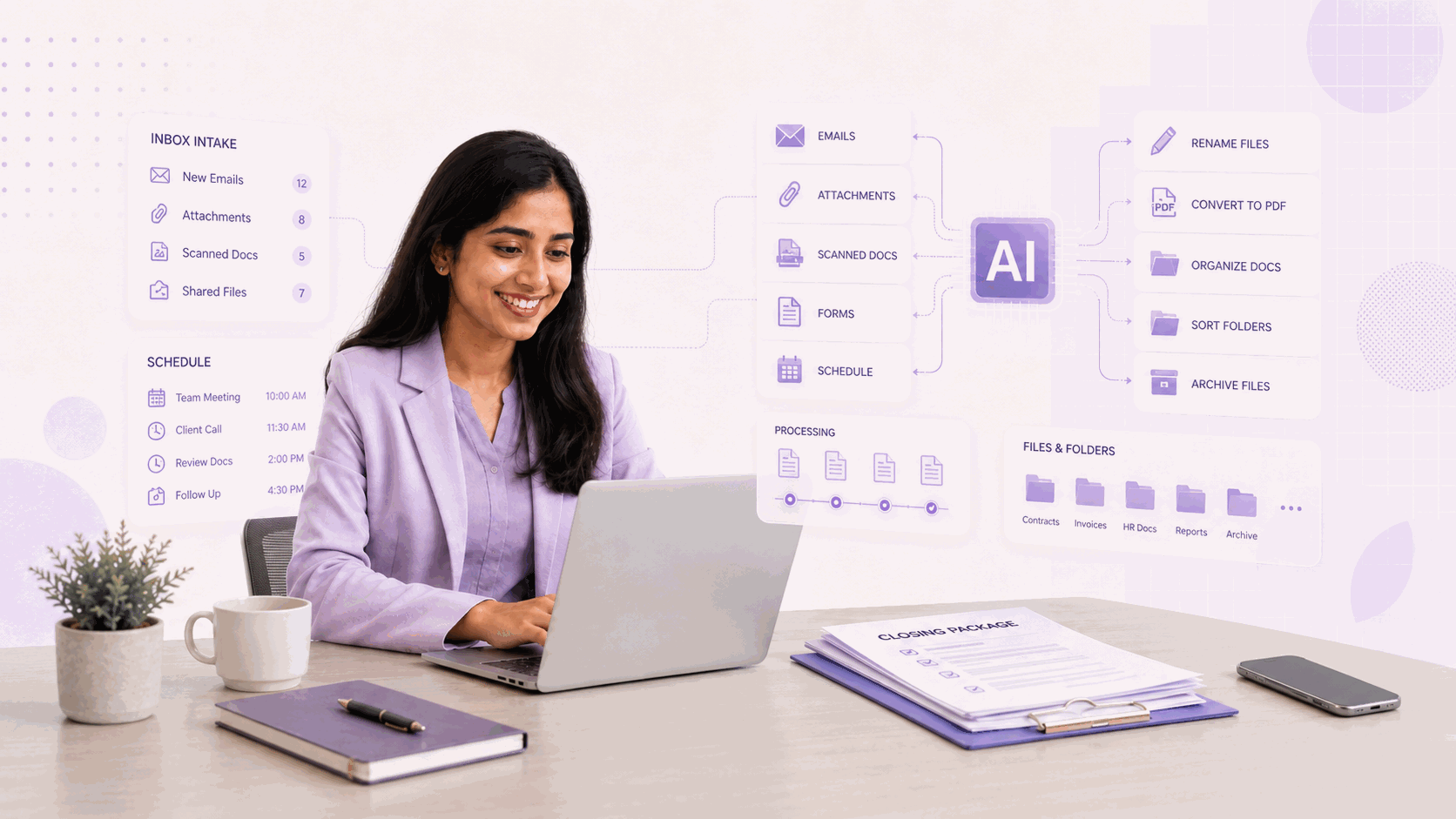
Stop juggling four apps to convert, rename, and file a folder — one sentence handles the whole batch while you stay mid-email or mid-call. The filing happens in the background, not as its own task on your list.
AP/AR clerk, bookkeeper
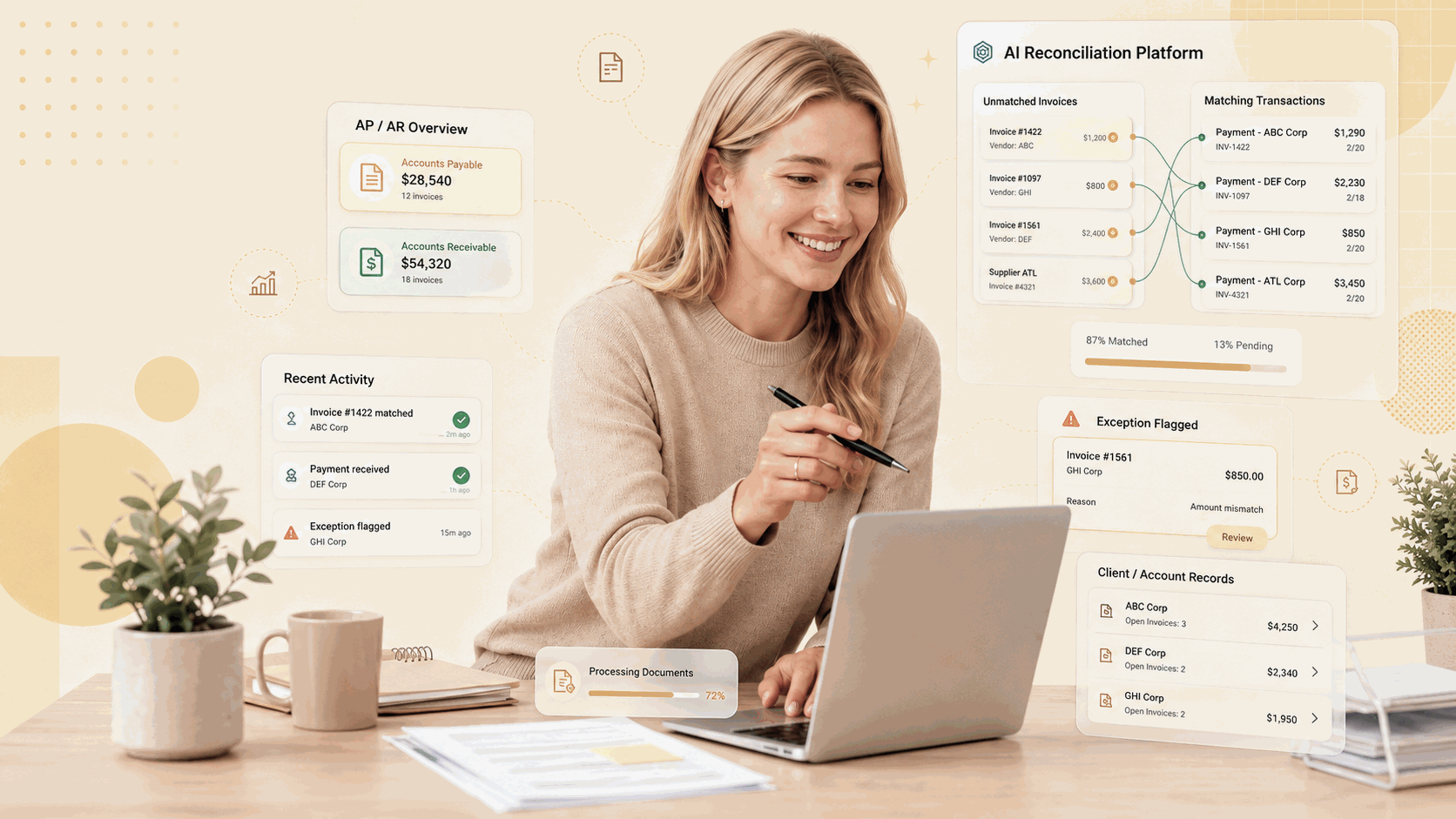
Invoices that used to cost a bookkeeper 90 minutes per client, filed one at a time, now convert, match, and flag exceptions across every client in one pass. Hours of swivel-chair reconciliation become a sentence.
HR specialists
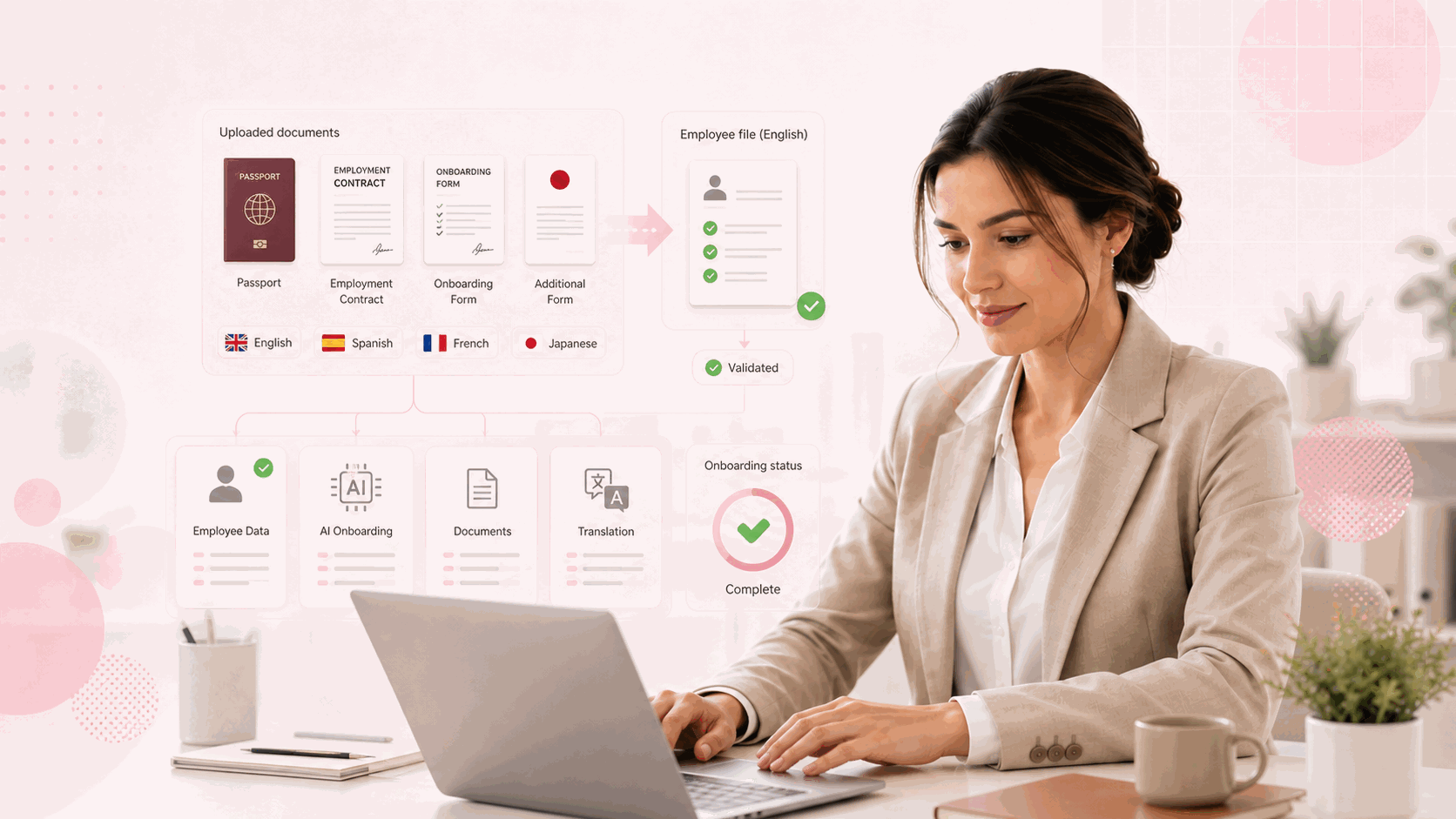
Onboarding an international hire means translating a whole folder of paperwork into their language in one pass, not document by document. A benefits review that once meant opening every file becomes one question, answered across the batch.
Loan officers, underwriters
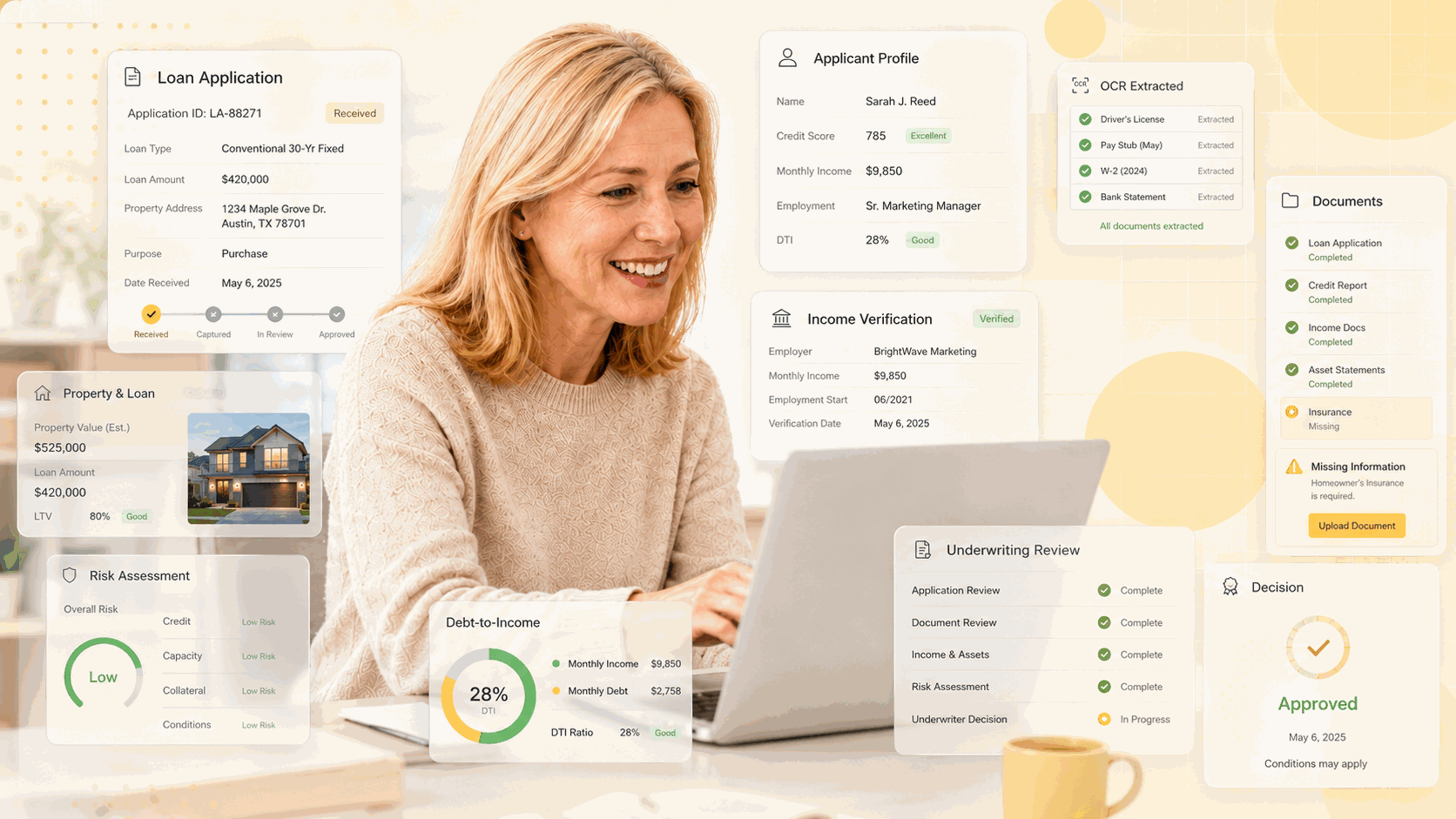
A folder of daily loan applications gets converted, OCR'd, and filed into the system of record in one instruction, not processed file by file. Ask "which are missing income verification" and get the answer without opening one.
Insurance administrators
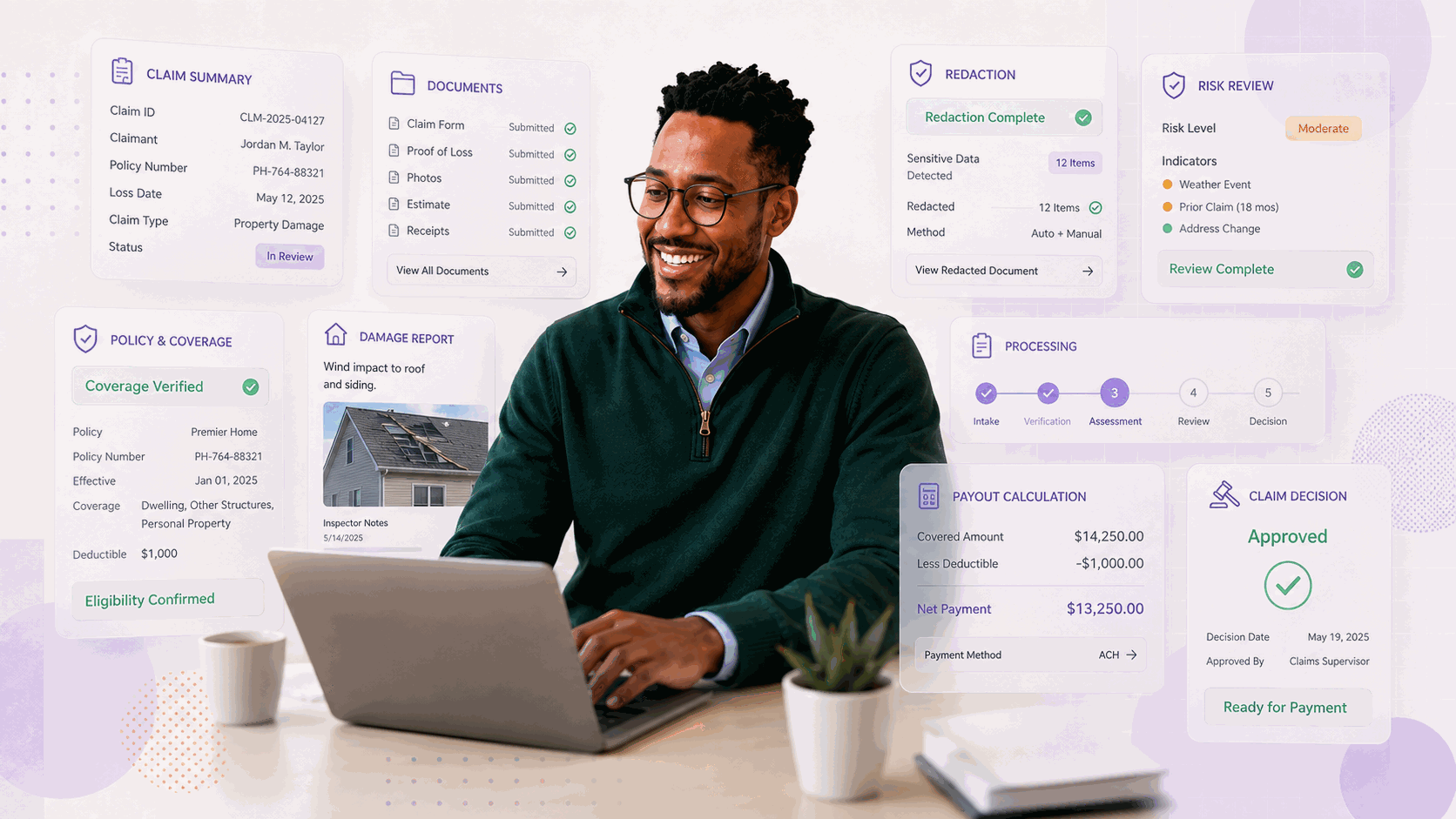
Ask "show me everything about this claim" and get one answer synthesized from every document — no more piecing the story together page by page. Redacting sensitive details across the whole claim takes one sentence, not an afternoon.
Real estate coordinators
Merge inspection reports, photos, and disclosures into one ordered closing package with a sentence, then pull just the page a buyer's agent asked for — without touching the original. Four separate documents collapse into one instruction.
Medical billing, records
A stack of scanned charts becomes searchable, filed records in one pass, entirely on-device — in the industry that's paid the highest price for data breaches year after year. A billing question that once meant hunting through a patient's file gets answered directly, across every document.
Supply chain administrators
A daily flood of purchase orders and shipping documents gets converted, validated, and filed into the system of record in one instruction, exceptions flagged immediately instead of surfacing weeks later. What used to require an ops coordinator now just requires asking.
Designed for those who operate files for a living - AI research, document and workflow orchestration in one pass
See how analysts, auditors, HR, insurance and loan officers, paralegals and back office turn files and folders into finished work and research hundreds of literatures with one question – it's your unified, query-able local knowledge base.
Local-first privacy, your data stays on your desktop
We take your privacy and security seriously because Owlfy lives locally and physically on your desktop with no cloud, no API, and in background, standing by to assist you whenever you call with your voice, as you work on another app.
Local documents remain local on your desktop
Owlfy operates locally and physically on your desktop, it does not "live" in cloud, so all operations, especially those involving your local and offline files, are processed locally. None of your files will be processed in cloud.
Zero-retention in cloud, local storage
No model training on user data, none of your conversations, personalization and settings - like "Smart Phrases", "Voices" - will be uploaded to cloud, all of which will remain stored locally on your device, unless you choose to upload those to cloud, and we will warn you before you do so.
Your voice, your privacy
Your voice is used only for real-time speech recognition, Owlfy does not store your voice for any purpose, especially not for model training, so your voice remains your exclusive asset.
Built-in safety as core architecture
Owlfy accesses only folders expressly authorized by users, and no high-risk actions like deleting files, moving files or restarting your device will be taken without your confirmation.
Zero exposed public APIs
Owlfy does not offer any externally accessible endpoints that outsiders can call directly over the internet. Access goes through tightly controlled, monitored pathways like authenticated frontends controlled by users.