
AI Task Automation,
Let Owlfy Run Your Scheduled Tasks on Your Computer
Autopilot
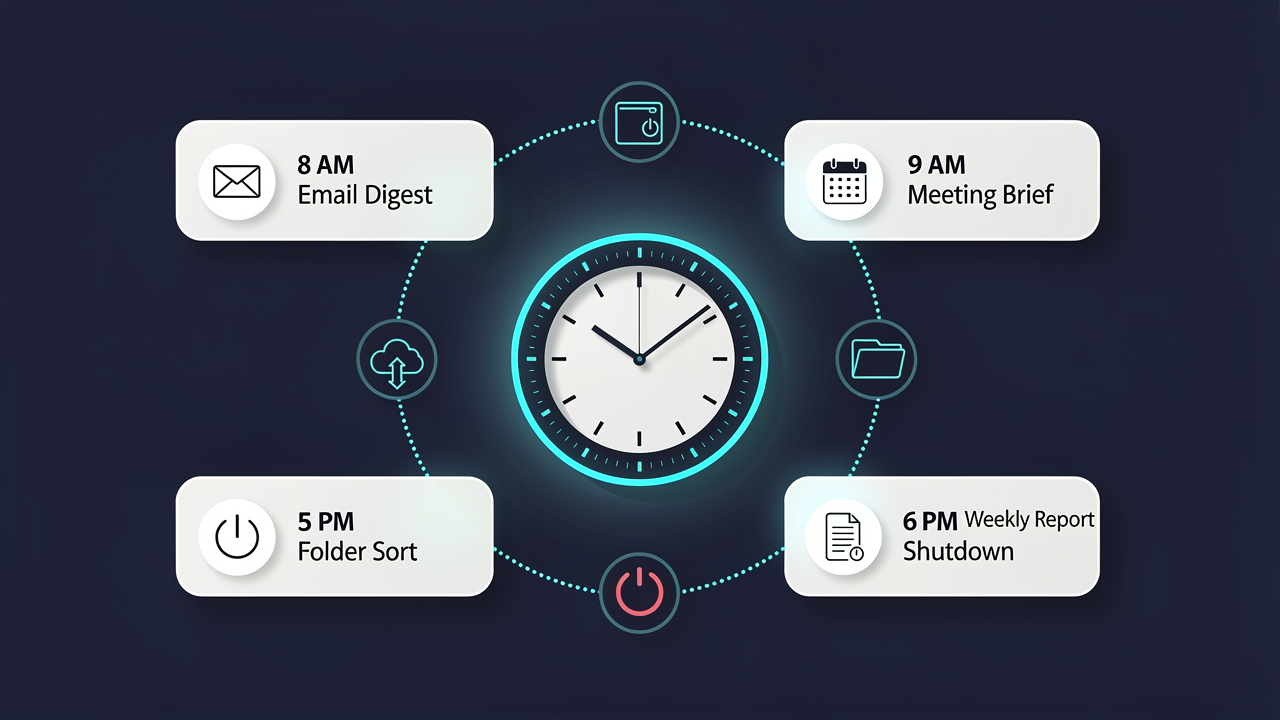
Owlfy Scheduled Tasks — six automated workflows running on a 24-hour clock, set once by voice.
Monday morning, 9:00 AM. Before you open your laptop, Owlfy has already scanned last week's meeting notes, built your action list for the week, and organized your Downloads folder by file type.
You sit down to a structured plan and a clean desktop — without doing any of it yourself.
This is what scheduled AI tasks look like in practice: not a technical automation platform for engineers, but a practical set-and-forget layer that makes your computer more useful every day without requiring your involvement.
Owlfy's Scheduled Tasks feature lets you define any recurring or one-time workflow by voice — and then step away. The task runs at the time you specify, on the schedule you choose, producing results locally on your device.
Setting Up Scheduled Tasks,AI Task Automation in 3 Steps
Define the task
Hold the voice key and describe what you want in plain language. "Every morning at 9 AM, summarize my unread emails and create a to-do list."
Set the schedule
Choose one-time, hourly, daily, weekly, or custom. Owlfy reads the schedule from your natural language description or prompts you to confirm.
Save and step away
The task activates immediately and runs on schedule, producing output locally without any further input from you.
Pro Tip:
You can also set up scheduled tasks remotely via WhatsApp or Messenger — text Owlfy from your phone while away from your desk, and the task activates on your PC immediately.
Real AI Workflow AutomationExamples
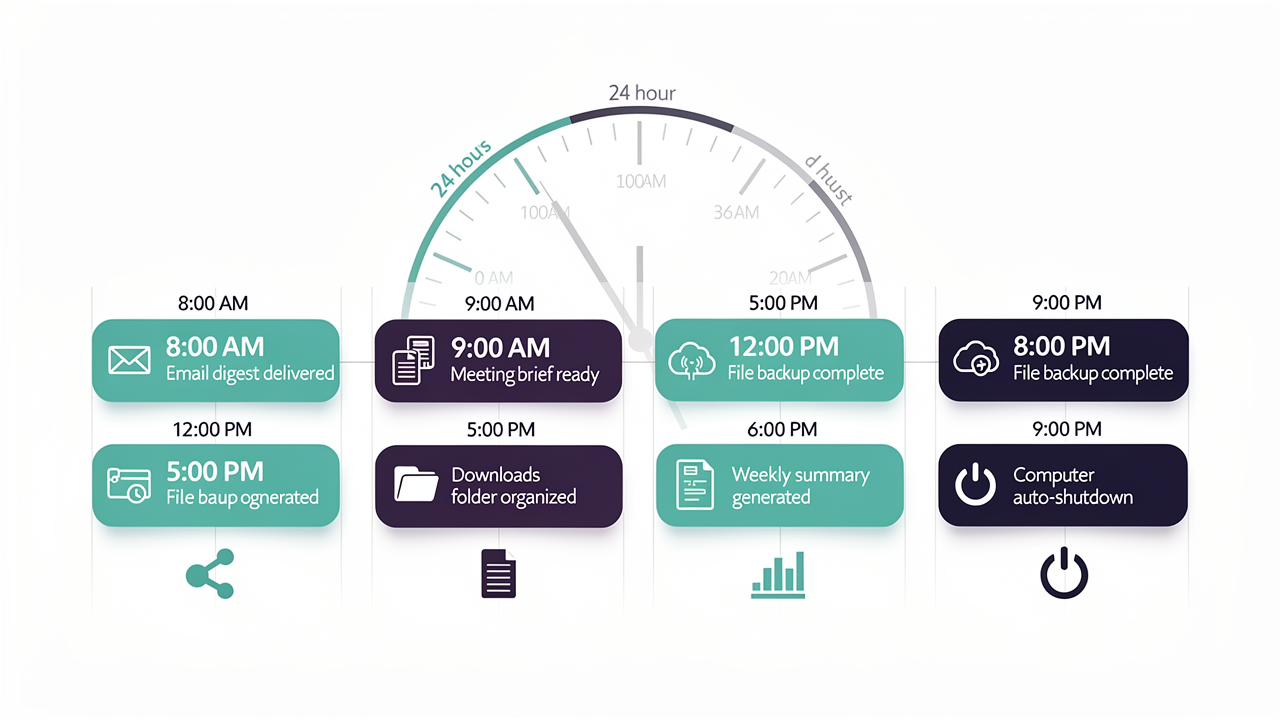
Sample 24-hour Owlfy automation schedule — email digest, meeting brief, file backup, folder organization, weekly summary, shutdown.
📧Email and Inbox Automation
Hourly email digest
"Every hour, scan my inbox, identify important unread threads, and summarize each one."
Morning inbox brief
"Every weekday at 8 AM, summarize my unread emails and list any deadlines or commitments mentioned."
Follow-up detection
"Every Friday at 4 PM, scan my sent emails from this week and flag any that haven't received a reply."
📅Meeting and Calendar Automation
Weekly meeting summary
"Every Monday at 9 AM, scan my notes folder for last week's meeting files, extract all decisions and action items, and generate a summary document."
Meeting preparation brief
"Every weekday at 8:30 AM, check my calendar for today's meetings, find relevant documents and emails, and generate a one-pager for each."
Agenda distribution
"Every Sunday evening, generate this week's meeting agenda from my calendar and save it to my Meetings folder."
📂File and System Automation
Folder organization
"Every Friday at 6 PM, organize my Downloads folder by file type."
Junk cleanup
"Every Sunday at 10 AM, clean up system junk files and empty the Trash."
🔬Research and Monitoring Automation
Daily news digest
"Every morning at 7:30 AM, get the top 3 stories from techcrunch.com and summarize them, save to my Reading folder."
Competitive monitoring
"Every Monday, search for new product announcements from [company], summarize findings and save to my Research folder."
Content pipeline
"Every Friday, compile the week's top AI news into a newsletter draft and save to my Writing folder."
"Specificity is the difference between a scheduled task that runs reliably and one that produces unpredictable results."
The most effective scheduled tasks are specific. "Every morning at 8 AM, read the top 3 stories from techcrunch.com and summarize them" reliably produces a useful output.
Managing Your
AI Task Automation
All active tasks are visible in the Scheduled Tasks dashboard, giving you full control over your computer's autonomous workflows.
Edit
Modify the task description, schedule, or output format at any time.
Pause / Resume
Temporarily disable a task without deleting it — useful during holidays.
Delete
Remove a task permanently.
Notification settings
Configure alerts for task status or run them silently in the background.
Active Tasks
6 RunningCompounding Value of Automation,
it's Your AI Personal Assistant
A single scheduled task saves a few minutes per day. Five scheduled tasks save 30–45 minutes — most of which would have been consumed by low-value, high-frequency routines.
The email digest runs every hour whether or not you remember to check your inbox. The folder organizer runs every Friday whether or not it's on your to-do list.
The meeting brief appears before every call without you building it. That is the compound effect of scheduled AI tasks.
The routine parts of your work happen automatically, reliably, and locally — so your attention is available for the parts that actually require it.
Start Your First AI Task Automation Today
Download Owlfy and set your first scheduled AI task in under three minutes.
Local, private, and powerful automation on your terms.